Sync your Spotify track to your Slack status with n8n
A beginner friendly walkthrough, including the Spotify quota limit that may stop you, the two URLs with opposite reachability rules, and the state ordering bug that silently stops retries.
Verified against Spotify, Slack and n8n on 18 August 2026. Spotify changed its API rules twice during 2026, so if you are reading this much later, check the linked Spotify pages before you start.
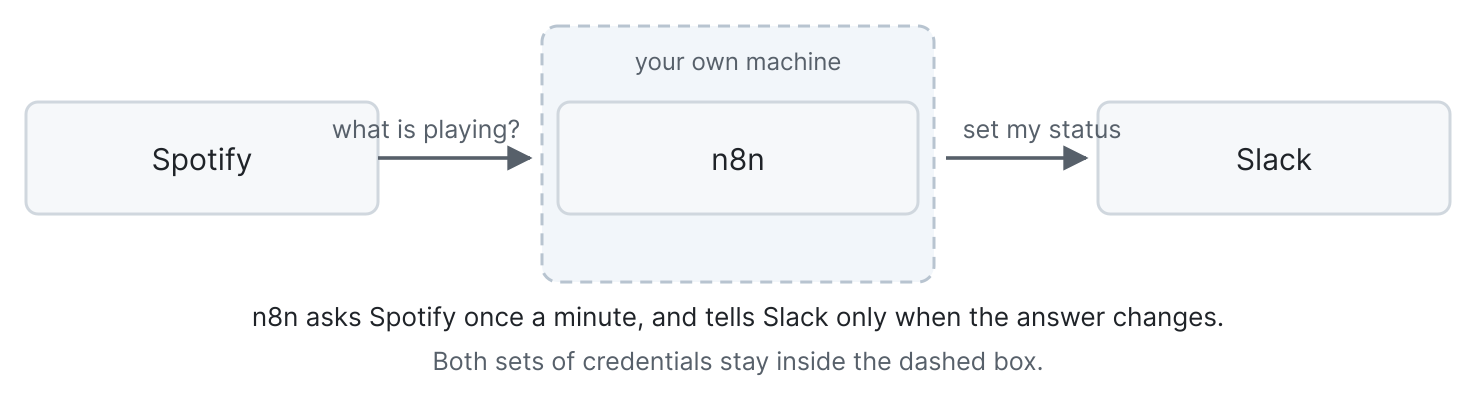
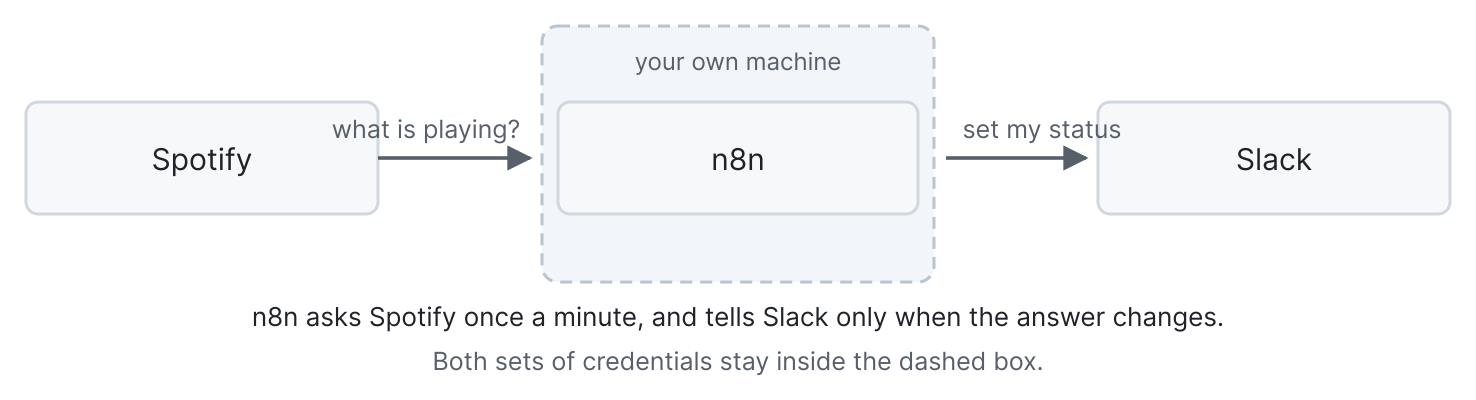
If you run a small Slack workspace, you can have each person's custom status follow whatever they are playing on Spotify. Several hosted apps already do this. Building it yourself with n8n means the Slack and Spotify credentials for everyone involved stay on your own machine instead of sitting with a third party, which is the main reason to bother.
This is written for someone comfortable clicking around a developer dashboard and editing a small amount of JavaScript. You do not need to have built an n8n workflow before. Concepts are explained as they come up.
The article ramps. By the end of part 5 you will have something that works. Parts 6 and 7 are what turn it from a demo into something you can leave running, and they are where the interesting bugs live. Parts 8 onwards are extras.
Before you start, the limit that might stop you
Two Spotify rules decide whether this project is possible for you, so they come first rather than as a surprise later.
An app in Spotify's Development Mode allows 5 authenticated users. It was 25 until Spotify changed the quotas in February 2026. You add each person by hand in the developer dashboard, under Settings and then User Management, using the email address on their Spotify account.
Getting past 5 means applying for Extended Quota Mode, which asks for a registered business, a launched service, and at least 250,000 monthly active users. For a household or a small team, treat 5 as permanent.
The person who owns the app also needs an active Spotify Premium subscription. If it lapses, the app stops working for everybody using it.
Since July 2026 the quota is counted per developer account rather than per app, so creating extra apps buys no extra capacity.
If your group fits inside 5 people and you have Premium, carry on. If you need eight, install one of the hosted apps and accept that they hold the tokens.
What you need
- n8n running somewhere, self hosted or cloud.
- Admin rights on the Slack workspace, enough to install an app.
- A Spotify account with Premium for whoever owns the app.
- A terminal with
curl, for two quick checks along the way.
Part 1. Three ideas to get straight first
Each of these explains a design decision later on, and getting them clear now saves confusion.
A Slack bot cannot do this for you. Slack apps normally act as a bot, with a bot token that represents the app itself. A bot cannot change somebody else's custom status. Setting a status needs a user token, which represents one specific person and is obtained when that person approves the app. There is no workspace admin shortcut. Everyone taking part goes through OAuth, the approval flow where you click "allow" and the app receives a token for you.
The consequence is that you are building one small integration per person, and the credentials multiply accordingly.
Spotify will not tell you when the track changes. There is no push notification, no webhook, nothing. You have to ask, repeatedly, which is called polling. Asking once a minute is plenty, since nobody notices a 30 second lag on a status line.
In n8n, a credential is a place rather than a value. n8n stores tokens and keys in named credentials, encrypted in its database, and nodes refer to them. This matters because if you export your workflows to a git repository, and you should, anything you typed directly into a node is exported in plain text. Credentials are not. Put every secret in a credential.
Part 2. Create the Spotify app
In the Spotify developer dashboard, create an app. Avoid the word Spotify in the name, because their branding policy prohibits using their trademarks that way. Select Web API when asked which APIs you plan to use.
Then it asks for redirect URIs, which is where people lose an afternoon.
A redirect URI is where Spotify sends the browser back to after somebody approves your app. The approval flow ends with Spotify handing over a short code, and the redirect URI is the address that receives it.
n8n shows you the exact redirect URI to use when you create a Spotify credential, which you will do in part 4. Open that dialog now, copy the URI it displays, and paste it here. Do not try to construct it by hand.
The rules for redirect URIs are unusual enough to be worth stating.
localhost is rejected outright. HTTPS is required, with one exception for loopback IP literals, where plain HTTP is allowed. So http://127.0.0.1:8888/callback is valid and http://localhost:8888/callback is not.
The redirect URI does not need to be reachable from the internet. This surprises people, and the reason is worth understanding because it comes back in part 8. The approval flow ends with Spotify sending a redirect to the person's browser, and the browser then goes to that address. Spotify's own servers never connect to it. Loopback addresses prove the point, since Spotify cannot reach 127.0.0.1 on your laptop. If your n8n runs on an address that only works inside your network, that is fine, as long as each person's browser can reach it at the moment they approve.
Add a loopback URI alongside the n8n one. Spotify accepts several, it costs nothing, and it keeps two questions apart. If Spotify refuses your internal address, you can still test whether the API works at all over loopback, so the outcome is "my setup choice is wrong" rather than "I cannot tell whether this is possible".
One warning about checking your work. Requesting GET /authorize with an unregistered redirect URI returns exactly the same response as a registered one, because Spotify does not validate it until after the person logs in. Posting a fake code to the token endpoint is equally useless, since the code is checked first. Both look like proof and tell you nothing. The only reliable check is the redirect URI list saved in the dashboard.
Copy the Client ID and Client Secret before you leave, then add your own Spotify account under Settings and then User Management. Until you do that, the API returns nothing for you.
Part 3. Create the Slack app
Create a second Slack app rather than reusing whatever bot already serves your workspace. This one needs no bot token at all, so keeping it separate means a revoked token here cannot break anything else you run.
At api.slack.com/apps, create an app from scratch and pick your workspace. Under OAuth and Permissions, find User Token Scopes, which is a different section from Bot Token Scopes, and add both of these:
users.profile:write
users.profile:read
A scope is a single permission. The write scope is what actually sets the status. The read scope is optional for a basic build, and you should add it anyway, because adding a scope later forces everybody to approve the app again.
Click Install to Workspace. Because you asked for user scopes, Slack gives you a User OAuth Token starting with xoxp-.
Check it works before going further. Paste the token when prompted rather than typing it into the command, which keeps it out of your shell history.
read -rs TOK
curl -s -H "Authorization: Bearer $TOK" https://slack.com/api/users.profile.get
curl -s -X POST -H "Authorization: Bearer $TOK" \
  -H 'Content-type: application/json; charset=utf-8' \
  -d '{"profile":{"status_text":"test","status_emoji":":musical_note:"}}' \
  https://slack.com/api/users.profile.set
Both should return "ok":true, and you should see the status appear in Slack. Clear it by running the second command again with both values set to empty strings.
If you get missing_scope, the scope went into Bot Token Scopes instead of User Token Scopes. That failure is confusing, because the app installs perfectly and only the profile calls fail.
Part 4. Connect both to n8n
Create a Spotify credential in n8n, paste in the Client ID and Secret, and complete the approval flow in a browser. n8n stores the long lived part and renews the short lived access token by itself, which is most of the value of using n8n rather than a script.
For Slack, create a Header Auth credential rather than n8n's built in Slack credential, which is designed around bot tokens. Set the header name to Authorization and the value to Bearer xoxp-... with your token.
Two practical notes. The credential's own name is a separate field from the header name, and they sit close together. Swapping them produces Header name must be a valid HTTP token, which reads like a bug in n8n and is a typo. Also name the credential after the person, something like Slack, alice, nowplaying, because you will eventually have several and they are otherwise impossible to tell apart.
Part 5. The smallest workflow that works
Four nodes. Build this, watch it work, then improve it.
A Schedule Trigger set to every minute. An HTTP Request node calling https://api.spotify.com/v1/me/player/currently-playing, using your Spotify credential as a predefined credential type. A Code node that builds the status text. A second HTTP Request node posting to https://slack.com/api/users.profile.set with your Header Auth credential.
In the Spotify node's options, turn on full response and never error. Full response gives you the HTTP status code alongside the body, and never error stops the node throwing on a non-success code so you can handle it yourself. Both matter in part 6.
The Code node, at its simplest:
const res = $input.first().json;        // { body, headers, statusCode }
const b = res.body;

let text = '', emoji = '';
if (b && b.item) {
  const artists = (b.item.artists || []).map(a => a.name).join(', ');
  text = artists ? b.item.name + ' by ' + artists : b.item.name;
  emoji = ':musical_note:';
}

return [{ json: { profile: { status_text: text, status_emoji: emoji } } }];
Turn the workflow on, play something, and your Slack status should follow it within a minute.
That is the whole idea working. Everything below is about making it behave when reality interferes.
Part 6. Make it behave
Three problems with the version above, in increasing order of how much they will annoy you.
It calls Slack every single minute. Slack is being told the same thing 1,440 times a day. Remember what you last wrote and stop early when nothing has changed.
n8n gives you workflow static data for this, a small store that survives between runs without needing a database.
A Spotify hiccup blanks the status. If Spotify returns an error, b.item is missing, so the code above writes an empty status. A brief rate limit or a network blip therefore looks identical to "nothing is playing". Check the status code and do nothing at all when the request did not succeed.
The two codes you care about are 200, meaning here is what is playing, and 204, meaning nothing is playing right now. Anything else is a problem, not an answer.
Podcasts and adverts arrive in the same field. Spotify's currently_playing_type can be track, episode, ad or unknown, and item can be empty for any of them. Decide deliberately what you want. Excluding everything except music takes one comparison.
Here is the same node with all three handled.
const sd  = $getWorkflowStaticData('global');
const res = $input.first().json;
const code = res && res.statusCode;
const now  = Math.floor(Date.now() / 1000);

// Anything other than 200 or 204 is a failure, not an answer. Leave the status alone.
if (code !== 200 && code !== 204) { return []; }

let target = { text: '', emoji: '' };      // default is to clear the status
const b = res.body;
if (code === 200 && b && b.is_playing && b.currently_playing_type === 'track' && b.item) {
  const artists = (b.item.artists || []).map(a => a.name).join(', ');
  let text = artists ? b.item.name + ' by ' + artists : b.item.name;
  if (text.length > 100) text = text.slice(0, 99) + '…';   // Slack's limit
  target = { text, emoji: ':musical_note:' };
}

// Nothing changed, so make no API call at all.
const key = target.text + '|' + target.emoji;
if (sd.lastWritten === key) { return []; }

const expiration = target.text ? now + 900 : 0;
return [{ json: { _key: key, profile: {
  status_text: target.text,
  status_emoji: target.emoji,
  status_expiration: expiration,
}}}];
Returning an empty array ends that run in n8n, so the Slack node does not fire. That is how both early exits work.
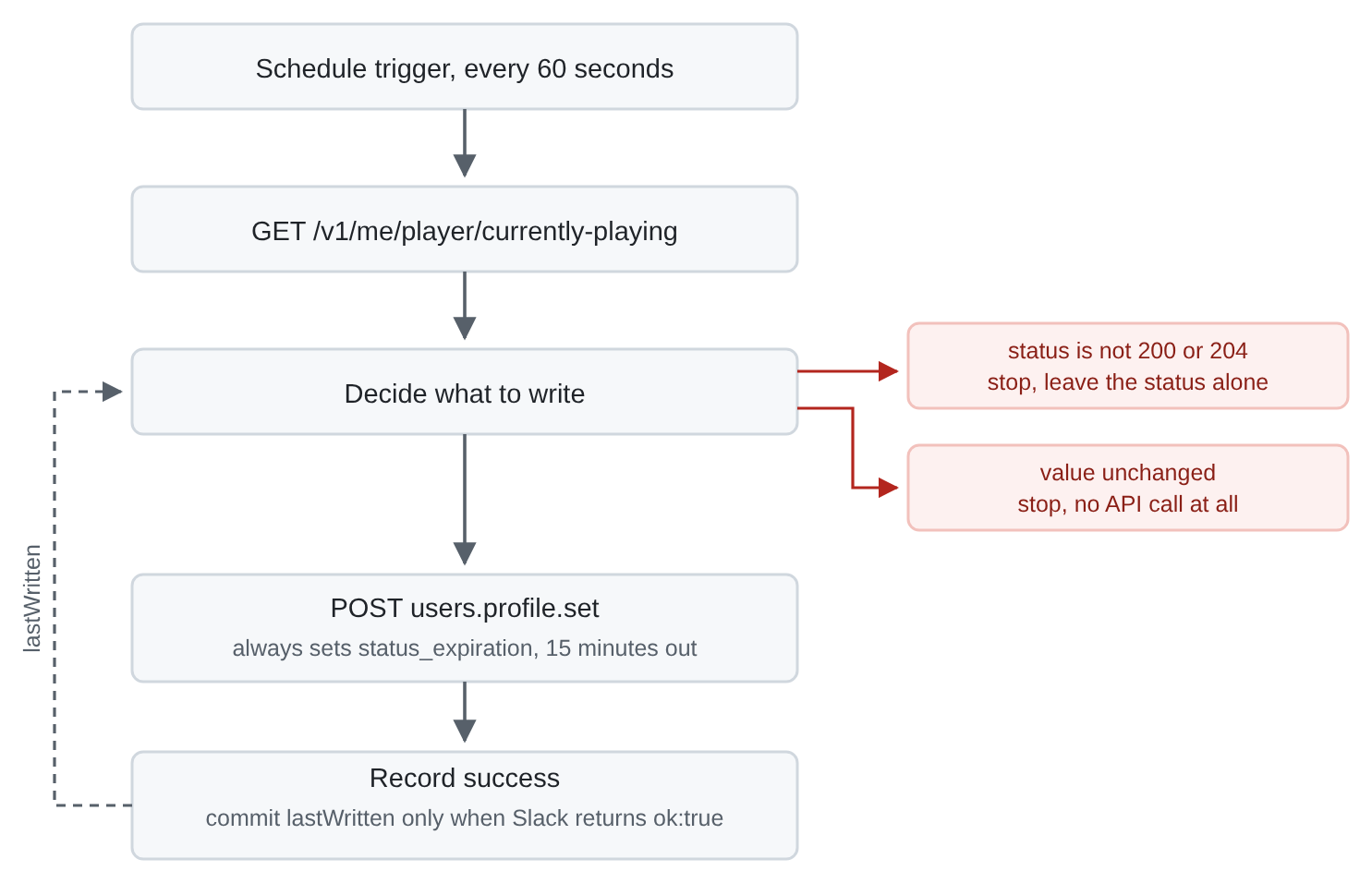
One new field appeared there. status_expiration tells Slack when to clear the status by itself, and it works as a dead man's switch. Slack does not set a default, so leaving it out means never. With an expiry fifteen minutes ahead, a workflow that crashes leaves a status that tidies itself up, rather than telling your colleagues you have been playing the same song since Tuesday.
Part 7. The mistake that is easy to make and hard to see
The code above returns _key without storing it anywhere. That is deliberate, and it is the most useful thing in this article.
The obvious approach stores lastWritten in the same node that works it out, then calls Slack. Consider what happens when that Slack call fails. The marker has already been saved, so on the next run the value matches, the code returns early, and it never tries again. One failed write leaves the status stuck for as long as that track keeps playing, and nothing appears in any log, because from the workflow's point of view everything is behaving normally.
The fix is to move the marker into a fifth node, after the Slack call, and only save it when Slack confirms success.
const sd  = $getWorkflowStaticData('global');
const res = $input.first().json;
const ok  = res && res.statusCode === 200 && res.body && res.body.ok === true;

if (ok) {
  sd.lastWritten = $('Decide status write').first().json._key;
  sd.lastOkAt = Math.floor(Date.now() / 1000);
} else {
  // Leave lastWritten untouched, so the next run tries again.
  sd.failStreak = (sd.failStreak || 0) + 1;
}
return [{ json: { ok } }];
The general rule is worth carrying to other projects. A marker that says "I already did this" is an idempotency marker, and you save it after the thing it describes has actually succeeded, never before. The failure it prevents is not a lost write. It is a write that never happens again.
Also add sd.lastPollAt = now; near the top of the decide node, before any of the early returns, so it updates on every run whatever happens. Part 9 uses it.
Part 8. Let people switch it off
Somebody will want to pause this before a meeting, and a feature you can only stop by revoking an OAuth approval gets revoked. Add a slash command.
A webhook trigger, a Code node, and a Respond to Webhook node are enough. Keep them in the same workflow as the polling loop, because static data belongs to one workflow. Reaching it from a second workflow would mean giving that workflow an n8n API key, which is a large permission for a small feature.
const sd  = $getWorkflowStaticData('global');
const arg = String(($input.first().json.body || {}).text || '').trim().toLowerCase();
if (sd.enabled === undefined) { sd.enabled = true; }

let text;
if (arg === 'off')     { sd.enabled = false; text = 'Sync is off.'; }
else if (arg === 'on') { sd.enabled = true;  text = 'Sync is on.'; }
else                   { text = sd.enabled ? 'Sync is on.' : 'Sync is off.'; }

return [{ json: { response_type: 'ephemeral', text } }];
In the decide node, treat sd.enabled === false exactly like nothing playing. The status then clears once through the change detection you already built, and stops. No separate code path.
Two things about slash commands catch people out, and the first is the payoff for part 2.
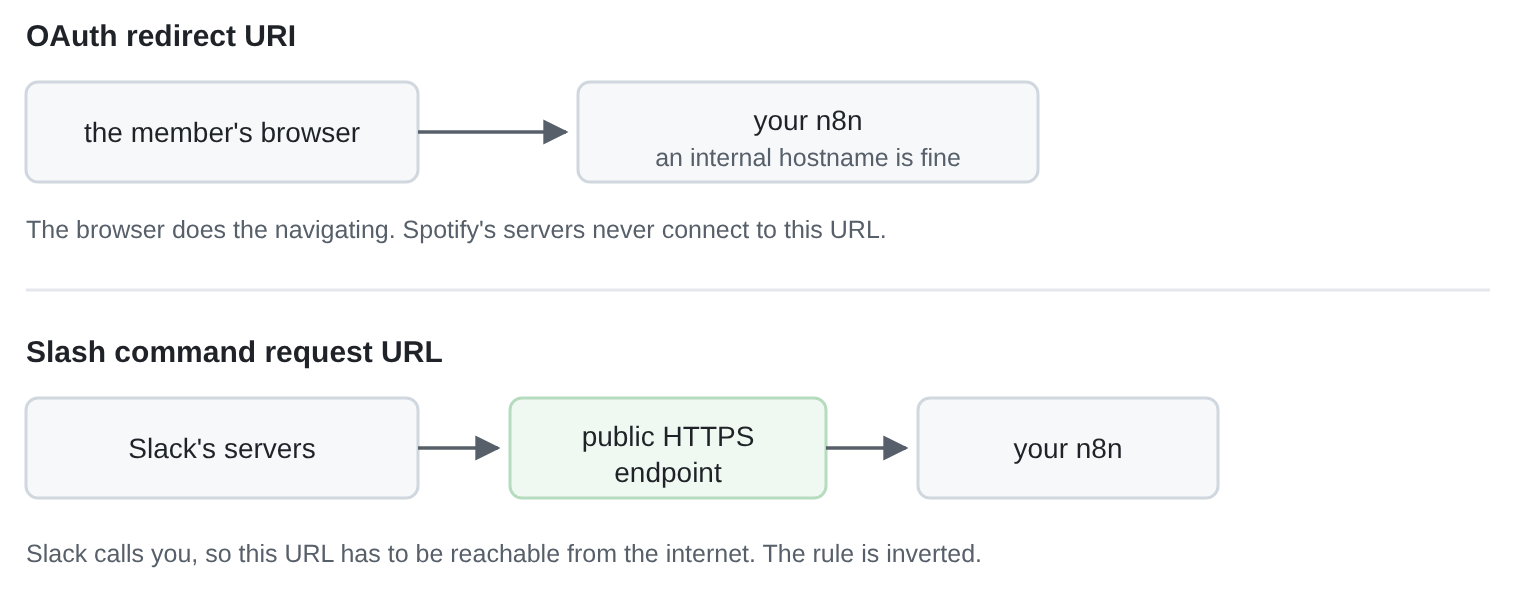
The request URL has to be reachable from the internet, because Slack calls it from its own servers. That is the opposite of the redirect URI in part 2, which the person's browser fetches and which can therefore be internal. Same app, two URLs, two different rules.
Registering the command also requires reinstalling the app to your workspace. Slack does not apply a new command to an existing installation. Reinstalling can issue a fresh user token, so check your status writes still work afterwards. Be careful how you check, because no errors is weak evidence. If nothing is playing there is nothing to write, so your failure counter stays at zero whether the token is valid or not. Make a write happen and watch it succeed.
Part 9. How to tell it is still working
A workflow running every minute produces 1,440 runs a day. Saving the details of all of them fills your database with nothing useful, so most people turn off execution data for successful runs.
In n8n that setting removes the whole execution record, not only the details. Successful runs leave no trace at all. Your executions list will show nothing newer than the last error while everything works perfectly, so an empty list proves nothing in either direction.
That is why part 7 added lastPollAt. Expose it through a second webhook that returns a small piece of JSON, and check freshness before anything else, because n8n can answer that webhook happily while the schedule is not running at all. A heartbeat older than five minutes is a fault, whatever the other numbers say.
Then make sure your monitoring can actually go red. Set lastPollAt back by ten minutes by hand and confirm you get an alert. Monitoring you have never seen fail is monitoring you should not trust.
Part 10. Limits, and going past one person
Slack's status_text holds 100 characters of plain text. No formatting, no markdown, no links, and Slack will not turn a bare URL into a clickable one. Spotify does return a track link in item.external_urls.spotify, so if you want something clickable, a custom profile field of type link is the only real route. It appears in the profile card rather than the sidebar, and custom profile fields are generally a paid plan feature.
Custom emoji work in the status. A custom emoji that does not exist does not fail, though. Slack accepts the write and the status appears with no icon at all, so check the status_emoji_display_info that Slack sends back rather than assuming.
Scaling past one person is more work than it looks. An n8n HTTP Request node is bound to one credential when you build it and cannot choose one per run, so five people cannot share a single Spotify node. Your options are five pairs of nodes in one workflow, five copies of the workflow, or a sub workflow called once per person. Decide before you build, not after, and note that per person state means keying the static data by person instead of the flat fields used here.
Where to stop
A working version for one person is an evening. The polling loop is twenty lines. Everything expensive was elsewhere, in Spotify's quota rules, in which URL needs to be public, and in the order of a single state write.
Build it for yourself first and leave it running for a day before adding anyone else. Both of the real bugs here appeared from a live failure rather than from reading the code, and they are much easier to fix when the only person with a stuck status is you.